EEE Setup - Special Permissions: Difference between revisions
From EnablerWiki
Jump to navigationJump to search
Created page with "Certain pages in EEE, most commonly '''Company Preferences''' or '''Database Task Schedules''', require to be run with elevated permissions. This is usually the <tt>EEEServicesSA..." |
No edit summary |
||
| Line 10: | Line 10: | ||
# Click OK twice to save changes | # Click OK twice to save changes | ||
# Test that the '''Company Preferences''' screen is now accessible | # Test that the '''Company Preferences''' screen is now accessible | ||
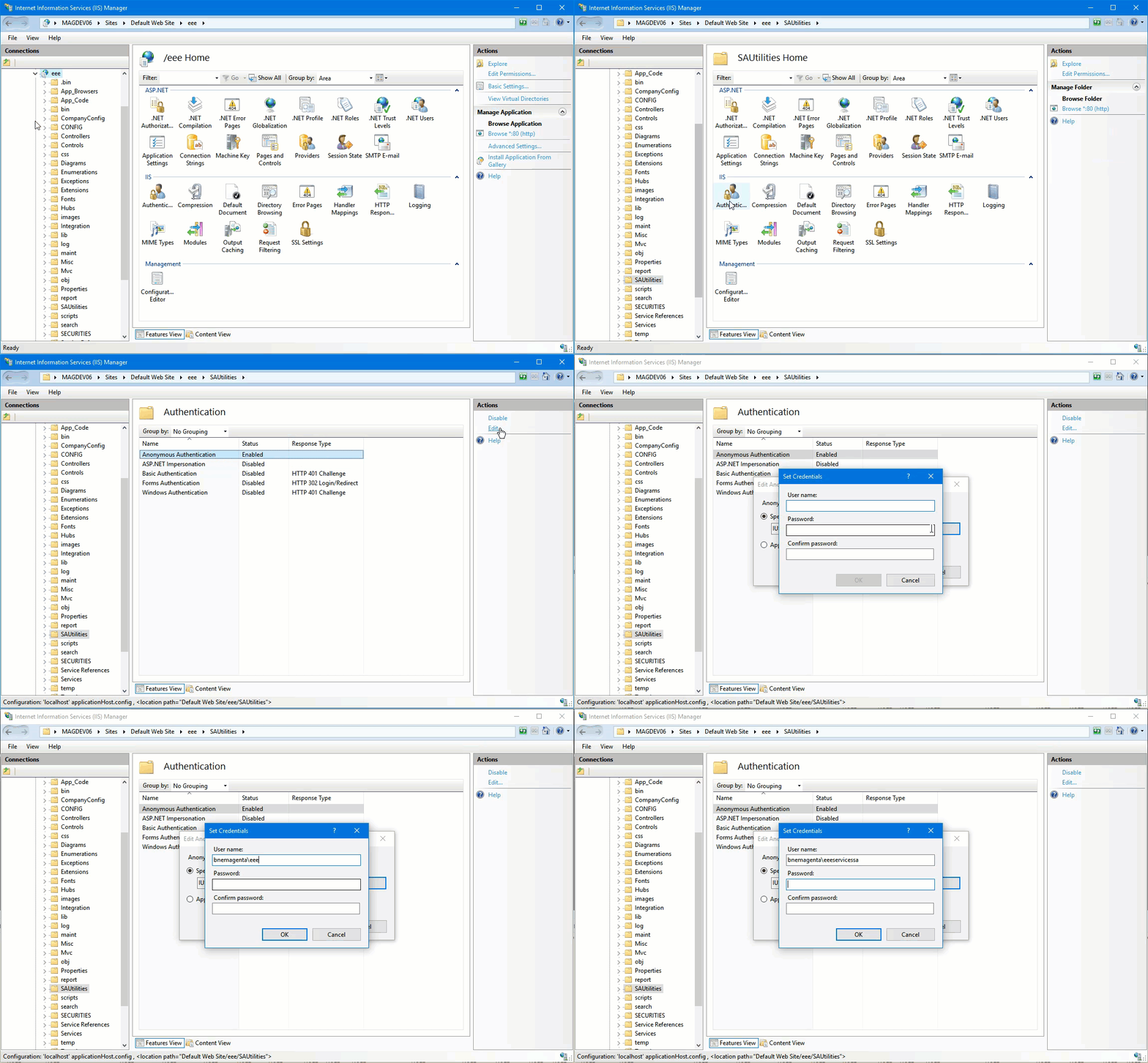
View an example [http://theoracle.magentaretail.com.au/images/2/23/EEE-Setup-Special-Permissions.gif here] | |||
Latest revision as of 03:11, 20 April 2017
Certain pages in EEE, most commonly Company Preferences or Database Task Schedules, require to be run with elevated permissions. This is usually the EEEServicesSA user rather than the EEEServices user that the rest of the web application runs as.
To set this up:
- Open IIS manager (Find this in start, or run inetmgr)
- In the Connections view, navigate to the SAUtilities folder under the EEE virtual directory
- In the main window, double-click on Authentication under IIS
- Ensure Anonymous Authentication is enabled
- Edit the Anonymous Authentication Entry, choose Specific user and set the EEEServicesSA user's credentials
- Click OK twice to save changes
- Test that the Company Preferences screen is now accessible
View an example here