Enabler Upgrades: Difference between revisions
No edit summary |
No edit summary |
||
| Line 21: | Line 21: | ||
'''Note:''' If you are looking for a specific version of Enabler other than the latest release, please contact Magenta Support and we will provide details for downloading required version. | '''Note:''' If you are looking for a specific version of Enabler other than the latest release, please contact Magenta Support and we will provide details for downloading required version. | ||
==Manual Upgrade== | |||
<span style="color: red">'''Note:''' The Head Office branch MUST be upgraded prior to upgrading stores</span> | <span style="color: red">'''Note:''' The Head Office branch MUST be upgraded prior to upgrading stores</span> | ||
| Line 28: | Line 28: | ||
'''Note:''' If the Head Office branch is upgraded using the auto upgrades pack nibbler must be running on the Head Office server and on ALL Head Office nodes at the scheduled time of the upgrade. A backup of the enabler folder is suggested prior to running an upgrade. | '''Note:''' If the Head Office branch is upgraded using the auto upgrades pack nibbler must be running on the Head Office server and on ALL Head Office nodes at the scheduled time of the upgrade. A backup of the enabler folder is suggested prior to running an upgrade. | ||
===How do I install the Manual Upgrade?=== | |||
#Download the manual upgrade package and unzip into an empty folder | #Download the manual upgrade package and unzip into an empty folder | ||
#:'''Note:''' In the examples provided, the manual upgrade pack has been unzipped into a folder called MAGENTA on the C: drive. This folder has also been shared as 'Magenta'. | #:'''Note:''' In the examples provided, the manual upgrade pack has been unzipped into a folder called MAGENTA on the C: drive. This folder has also been shared as 'Magenta'. | ||
| Line 44: | Line 44: | ||
All machines in a branch environment must run the same version of enabler. | All machines in a branch environment must run the same version of enabler. | ||
===How do l manually upgrade the tills (nodes) across the network?=== | |||
#As per the previous details, unzip the upgrade package to a folder on the Head Office or Store Server | #As per the previous details, unzip the upgrade package to a folder on the Head Office or Store Server | ||
#On the tills (nodes) close ALL Enabler applications including Nibbler | #On the tills (nodes) close ALL Enabler applications including Nibbler | ||
| Line 55: | Line 55: | ||
#The upgrade should complete with no errors. If you have any errors, refer to the section investigating upgrade issues within this document | #The upgrade should complete with no errors. If you have any errors, refer to the section investigating upgrade issues within this document | ||
==Auto Upgrades== | |||
An auto upgrade enables an upgrade to perform automatically as a scheduled task. The upgrade pack is held at the Head Office server and copied to the branch prior to the upgrade | <span style="color: red">'''Note:''' The Head Office branch MUST be upgraded prior to upgrading stores</span> | ||
An auto upgrade enables an upgrade to perform automatically as a scheduled task. The upgrade pack is held at the Head Office server and copied to the branch prior to the scheduled upgrade time. A single branch, a region or the whole company can be scheduled for an upgrade at the same time. | |||
'''Note:''' | '''Note:''' This guide assumes that the Enabler folder on the Head Office Server and Store Servers has been shared as the share name: enserver. It is also assumed that the store connects to the HO Server via a standard TCP/IP based WAN. | ||
For a document that outlines upgrades via Batch File Comms, contact Magenta Support. | For a document that outlines upgrades via Batch File Comms, contact Magenta Support. | ||
===Auto Upgrade Checklist=== | |||
====What is the correct upgrade path for all machines in a store?==== | ====What is the correct upgrade path for all machines in a store?==== | ||
The auto upgrade path differs between Store Servers and Tills and must be configured separately. The store server will copy the auto upgrade pack locally from Head office prior to running the upgrade. The store till will use the upgrade pack copied on the store server. | The auto upgrade path differs between Store Servers and Tills and must be configured separately. The store server will copy the auto upgrade pack locally from Head office prior to running the upgrade. The store till will use the upgrade pack copied on the store server. | ||
Revision as of 00:28, 20 May 2011
Where Do I Get The Upgrade Files From?
Note: When a new version is released, clients will be notified via email. We recommend internal testing of the new version in a test environment prior to upgrading stores in the live environment.
Downloading upgrade packs from the web site
Browse to our website: www.magentaretail.com.au and select Support then Downloads.
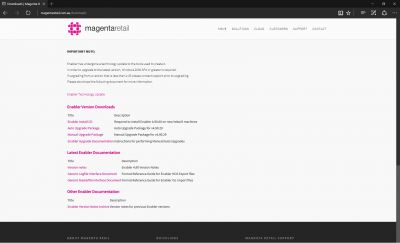
The Downloads page will contain the latest upgrade and install packs and relevant documentation.
Clicking on the title of the upgrade pack will enable the file to be opened or downloaded.
Click on save to download upgrade packs to a local directory.
The upgrade version and type of upgrade can be identified by the file name.
The auto upgrade pack is a zip file and identified by the file name starting with _u ie: _u406602.zip. Do NOT extract this file. The upgrade file is copied to branches and Enabler executes the upgrade process as a scheduled task. Nibbler must be running on all tills in the branch during upgrade process. Refer to the Auto upgrade checklist section for further details
A manual Upgrade file should be extracted and the upgrade is executed via a command prompt manually. All Enabler applications including nibbler must be shut down prior to running the upgrade command. The upgrade process only upgrades the till it’s being run on. Refer to the manual upgrade section for further details
Note: If you are looking for a specific version of Enabler other than the latest release, please contact Magenta Support and we will provide details for downloading required version.
Manual Upgrade
Note: The Head Office branch MUST be upgraded prior to upgrading stores
It is preferred that the manual upgrade process is applied on Head Office Server and tills (nodes). It can also be used for upgrading store servers/tills that cannot be upgraded automatically due to network issues etc or new tills that are being added/ rebuilt.
Note: If the Head Office branch is upgraded using the auto upgrades pack nibbler must be running on the Head Office server and on ALL Head Office nodes at the scheduled time of the upgrade. A backup of the enabler folder is suggested prior to running an upgrade.
How do I install the Manual Upgrade?
- Download the manual upgrade package and unzip into an empty folder
- Note: In the examples provided, the manual upgrade pack has been unzipped into a folder called MAGENTA on the C: drive. This folder has also been shared as 'Magenta'.
- Close ALL Enabler applications including Nibbler
- Open a command prompt and go to the Enabler folder. EG:
C:\Users\POS> cd\enabler - Enter the following command and press Enter to run the upgrade
c:\magenta\upgrade c:\magenta\
- Note: Ensure you include the '\' on the end
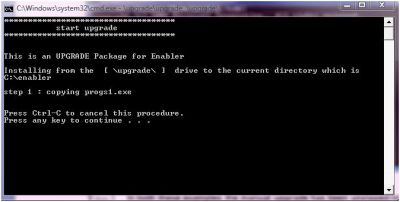
- The following screen will be displayed:
- Press <enter> to start the upgrade
- The upgrade should complete with no errors. If you have any errors, refer to the section investigating upgrade issues within this document
Note: The Head Office server and tills must always on be the same or a greater version to that of the stores. All machines in a branch environment must run the same version of enabler.
How do l manually upgrade the tills (nodes) across the network?
- As per the previous details, unzip the upgrade package to a folder on the Head Office or Store Server
- On the tills (nodes) close ALL Enabler applications including Nibbler
- Open a command prompt and go to the enabler folder. EG:
C:\Users\POS> cd\enabler - Enter the following command to run the upgrade
\\ServerName\magenta\upgrade \\ServerName\magenta\
- Note: Ensure you include the '\' on the end
- Note: Replace 'ServerName' with the name or IP Address of your Head Office or Store Server
- Press <enter> to start the upgrade
- The upgrade should complete with no errors. If you have any errors, refer to the section investigating upgrade issues within this document
Auto Upgrades
Note: The Head Office branch MUST be upgraded prior to upgrading stores
An auto upgrade enables an upgrade to perform automatically as a scheduled task. The upgrade pack is held at the Head Office server and copied to the branch prior to the scheduled upgrade time. A single branch, a region or the whole company can be scheduled for an upgrade at the same time.
Note: This guide assumes that the Enabler folder on the Head Office Server and Store Servers has been shared as the share name: enserver. It is also assumed that the store connects to the HO Server via a standard TCP/IP based WAN. For a document that outlines upgrades via Batch File Comms, contact Magenta Support.
Auto Upgrade Checklist
What is the correct upgrade path for all machines in a store?
The auto upgrade path differs between Store Servers and Tills and must be configured separately. The store server will copy the auto upgrade pack locally from Head office prior to running the upgrade. The store till will use the upgrade pack copied on the store server.
- On the Head Office Server, start Back Office
- Select Global Setup
- On the right hand side of the screen select: Transaction Processing/Comms → Version Control Setup → Config
- When prompted, choose either 'Store Server' or 'Tills'
- Complete the details as follows for each machine type:
Store Server Upgrade Path Setup
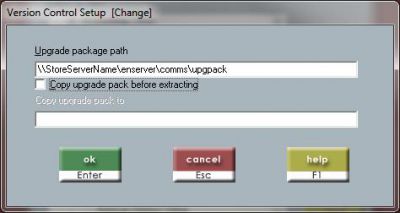
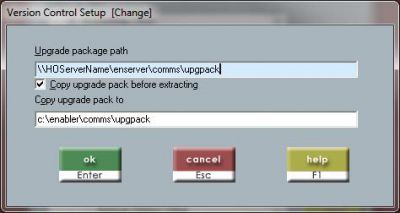
This is the correct configuration for a store server
HOServerName = the HO Server’s machine name or IP Address
Store Till Upgrade Path Setup
This is the correct configuration for a till in a store.
StoreServerName = the Store Server’s machine name or IP Address