EEPOS:Update Process
Updating EEPOS to a new version
WE RECOMMEND APPLYING NEW UPDATES IN THE FOLLOWING PROCEDURE
- Apply to Test Till(s) and test thoroughly for a week.
- Apply to 1 store for a few days.
- Apply to 2 more stores for a few days.
- Apply to all remaining stores.
This recommendation is made to ensure that if any issues occur, the effect can be minimalised.
Pre-setup checklist
- Ensure company is configured as having Enabler Enterprise POS stores
- In EEE, navigate to Utilities → Configuration → Company Preferences.
- Scroll to the bottom of the screen, and confirm that the “has Enabler Enterprise POS stores” is ticked. If it is not, tick it and save.
- Ensure that the Till(s) are configured as an Enabler Enterprise POS Till.
- In EEE, navigate to Location Management → POS Till Maintenance)
- Select the till and click Edit.
- Confirm that the tick box is checked for “Is Enabler Enterprise POS Till?”.
- Save and check the next till for that branch.
- Ensure that the Magenta Web Service URL is correctly configured.
- In EEE, navigate to Utilities → Configuration → Configuration Settings.
- Click the “Licensed Plugins” tab.
- Ensure the Magenta Web Service URL is http://licensing.magentaretail.com.au/MagentaWebService
Note: Ensure that EEE Server and all tills to be updated are online and running. The update will push through to the store server first, and then to any other tills.
Ensure store servers have replicated from EEE Server at least once.
Updating EEPOS
- Log into EEE.
- Navigate to Utilities → Configuration → Enabler Enterprise POS → Update Scheduling.
- Click “Check for new updates” and wait for it to process. A message beside the button will read “Checking for new updates…”. This will disappear once it has processed.
- Select the version you will be updating to by clicking the row, then click “Download”. Once the “Downloaded” status changes to “Yes”, click “Schedules”.
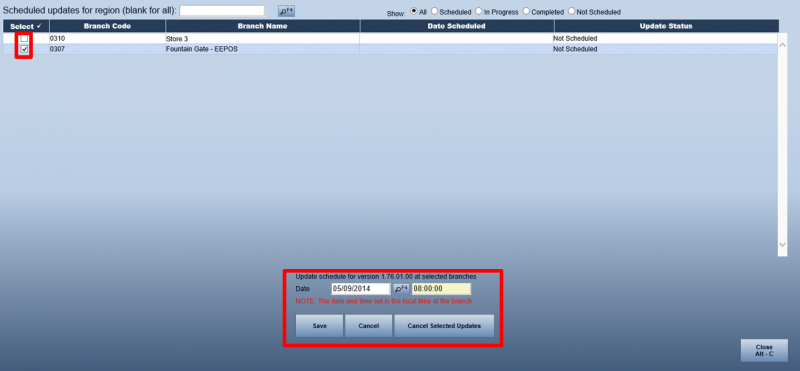
- Find your store and tick it. By default, the time and date will be the current date and time, but you can set the update to happen at some point in the future. Select the date and time for your update to run, and click Save.
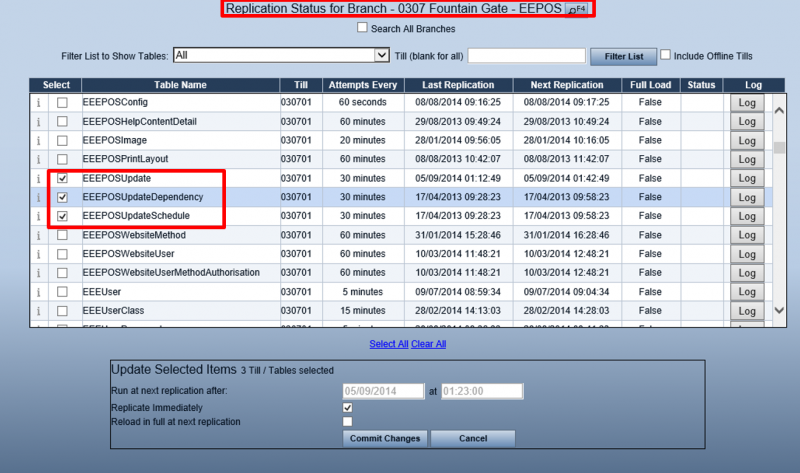
- Go to the main menu and go to Utilities → Data Interchange → Store Replication Status.
- Check that the store you are updating is at the top of the screen, and if not, select it by clicking the F4 button and selecting it.
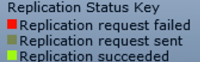
- Scroll through the list and tick the following: EEEPOSUpdate, EEEPOSUpdateDependency and EEEPOSUpdateSchedule. Tick Replicate Immediately at the bottom of the screen, and click Commit Changes. Wait for the status columns beside these 3 rows to signify “Replication Succeeded”.
- Wait for the time that you have scheduled for the updates, and check that these tills have updated to the new version by checking the Menu bar at the top of the EEPOS screen.
- During the update, EEPOS will close and a DOS Prompt window will appear on the screen. Please do not close this window. If EEPOS is closed when the update time ticks over, EEPOS will update in the background, and will not allow EEPOS to open until it is completed.
Note: The tills will not upgrade while a transaction is in progress. If it gets to the time of the update and a transaction is in progress, an alert will pop up on the screen, telling the operator that after the current transaction, the till will update.
The store server will always update first, and then any remaining tills, so there will always be at least one till available for trade.
If you encounter any issues, please contact Magenta Support.


Versions in image may not be the latest versions available.
