EEE Financial Calendar
This page is still under creation. Please contact Magenta Support if you have any questions regarding the content
Retail Calendar
It is important that Retail calendars are set up without overlapping (i.e. the same date should not be part of more than 1 Retail week, month or year, and without gaps (i.e. no date should be missing from the Retail calendar). This is to avoid problems and inconsistencies with Summary Data (for reporting), and Budgets (for Central purchase Orders).
When adding a new Financial Year, the Start Date will default to 1 day later than the end date of the latest existing Financial Year (or blank if no Financial Years exist yet). This can be over-typed if necessary. The specified Start Date must not fall within any existing Financial Year, otherwise an error message: The specified Start Date falls within an existing Retail Year is displayed.
A Financial Year cannot be deleted or edited if:
- It contains Central Purchase Orders (if Central Purchase Orders are configured to use Financial (Retail) Years)
- It contains Budgets (if Central Purchase Orders are configured to use Financial (Retail) Years)
- It has been used with Summary Data
The only exception is that the Season for Financial Months within Financial Years meeting one of these 3 criteria may still be changed. Clicking the Edit or Delete button in the Retail Year Maintenance screen produces a warning message, e.g.
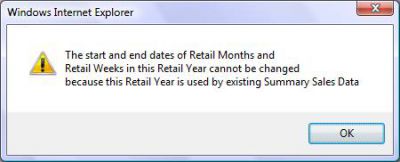
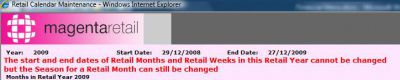
After clicking on OK, the following message is displayed.
When you select “Retail Calendar” from the Calendar menu, the screen below is displayed if there are already existing retail calendars.
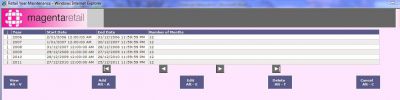
- View (Alt-V) – Views the highlighted calendar.
- Add (Alt-A) – Adds a new calendar as shown here.
- Edit (Alt-E) – Edits an existing calendar. Where a calendar has summary data linked to it or purchasing budgets or purchase orders (if configured to use financial years), the only field that can be edited is the Season.
- Delete (Alt-T) – Deletes the highlighted calendar. Calendars can only be deleted if there is no summary data linked to the calendar, budgets or purchase orders (if configured to use financial years).
- Cancel (Alt-C) – Cancels this screen and returns to the Calendar menu.
