Investigating POS Service Issues
From EnablerWiki
Jump to navigationJump to search
Pos Service Statuses
Click the POS Service light to expand it and obtain the specific message.
Red:
- POS Service is stopped – “POS Service stopped”
Yellow:
- POS Service is in the process of starting – “POS Service starting”
- POS Service is in the process of stopping – “POS Service stopping”
Orange:
- No connection to local EEPOS database – “No connection to database”
- No connection to store server – “No connection to store server”
- No connection to replication source – “No connection to replication source”
- Store Server is updating – “Store Server update in progress”
- EEE is updating – “EEE update in progress”
Green:
- POS Service is running – “POS Service Running”
POS Service issues
If the POS Service light is orange, review the table below to determine the potential cause/resolution
| Status | Potential cause | Solution |
| No connection to database | SQL Server Service is not running | Start the SQL Server (MAGENTAPOS) Service |
| EEPOS database is not accessible | Ensure EEPOS database is in a valid state. If EEPOS database is inaccessible or in an error state, contact Magenta Support. | |
| No connection to store server | Store server is offline or inaccessible | Ensure the store server is online and accessible |
| Network connectivity issues | See Network checks section below | |
| No connection to replication source | Replication source is offline or inaccessible | Ensure the replication source is online and accessible |
| Network connectivity issues | See Network checks section below | |
| Store Server update in progress | Store server is updating | Ensure store server has completed updating. If update has already completed, status will automatically reset after an hour. |
| EEE update in progress | EEE is updating | Ensure EEE has completed updating. If update has already completed, status will automatically reset after an hour. |
Network checks
- Reboot the machine. Temporary network issues are commonly resolved through a simple reboot.
- If the till is a store server:
- Check that the EEE database server is able to resolve the correct IP address of the EEPOS till by performing a ping using the hostname
- In Command Prompt, type “ping <hostname>” and press enter (e.g. “ping TILL01”)
- Check that the EEPOS till is able to resolve the correct IP address of the EEE database server by performing a ping using the hostname
- In Command Prompt, type “ping <hostname>” and press enter (e.g. “ping EEESERVER01”)
- Check that the EEE database server is able to resolve the correct IP address of the EEPOS till by performing a ping using the hostname
- If the till is not a store server:
- Check that the till is able to resolve correct IP address of the store server by performing a ping using the hostname
- In Command Prompt, type “ping <hostname>” and press enter (e.g. “ping STORESERVER01”)
- Check that the store server is able to resolve correct IP address of the till by performing a ping using the hostname
- In Command Prompt, type “ping <hostname>” and press enter (e.g. “ping TILL01”)
- Check that the till is able to resolve correct IP address of the store server by performing a ping using the hostname
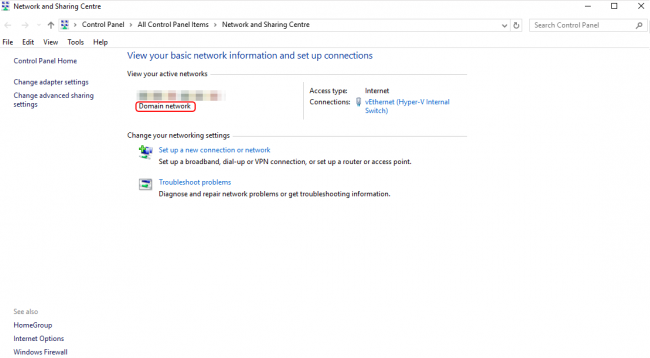
- Ensure the network profile is set to the correct profile (Network and Sharing Centre)
- Most companies have policies set to apply to a private/domain profile, and a network issue has caused the profile to change to a different profile.
- Check the POS Service log (located in C:\ProgramData\MagentaPOS\C-Program Files (x86)-Magenta Retail-EEPOS) for any errors.

Please note, the following DTC checks are only applicable to versions of POS earlier than 1.86.
- If any errors relate to DTC/MSDTC (try each step below, restarting the POS Service between each change and reviewing the POS Service):
- Restart the Distributed Transaction Coordinator, or start it if it is not running.
- Reboot the machine.
- If the error relates to “MSDTC is unavailable”, in Command Prompt (elevated), run “msdtc -resetlog“. This will clear out the DTC log.
- If the error relates to “MSDTC is unavailable”, and the reboot/resetlog did not resolve the issue, uninstall and reinstall DTC (note that this will require another reboot after DTC has been reinstalled).
- In Command Prompt (elevated), run “msdtc -uninstall“.
- In Command Prompt (elevated), run “msdtc -install“
- If the above did not resolve the issue, check Event Viewer for DTC related errors, and resolve.
Contact Magenta Support if you are still unable to resolve the issue.
